Before you start
- You have at least one order. Place a test order on your order page if not.
Step by step
-
Open Order Management
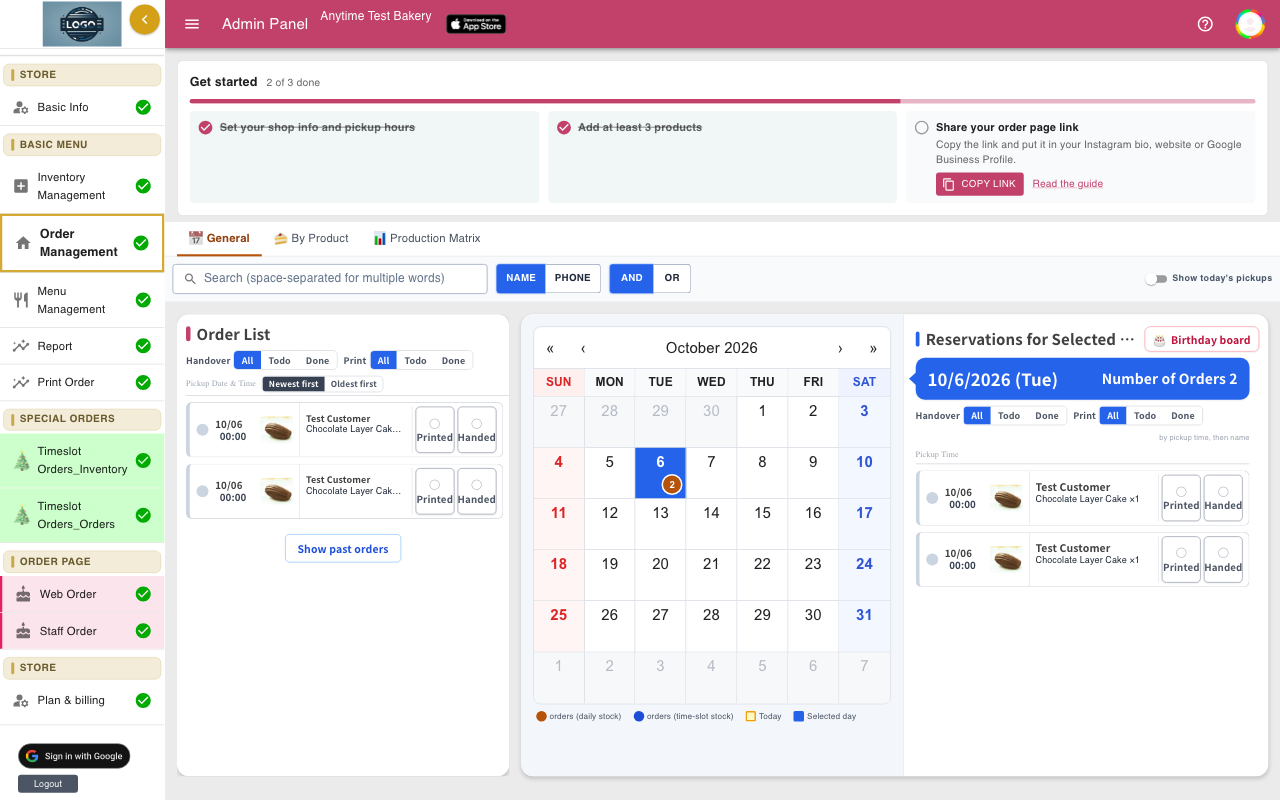
Click Order Management in the left menu. It has three tabs: General (orders by date), By Product (how many of each item) and Production Matrix (a production sheet). New orders appear on their own; there is no need to refresh.
-
Use the list and the calendar
The Order List on the left shows pickups from today on. The calendar shows how many orders are due each day; click a date to see them under Reservations for Selected Date.
At the bottom of the list, Show past orders loads older orders, 100 at a time. Turn on Show today's pickups for a timeline of today with late pickups in red.
-
Find an order
Type in the search box at the top to find orders by name. Tap Phone to search phone numbers too, and use AND or OR when you type more than one word.
To find orders by product, use the By Product tab.
-
Mark orders as Printed and Handed
Each order has two buttons: Printed and Handed. Tap them as you go; an order turns green when both are done. Tapping again asks you to confirm, so a mis-tap is easy to undo.
Use the Handover and Print filters (All, Todo, Done) to see only what is left.
-
Open an order for details
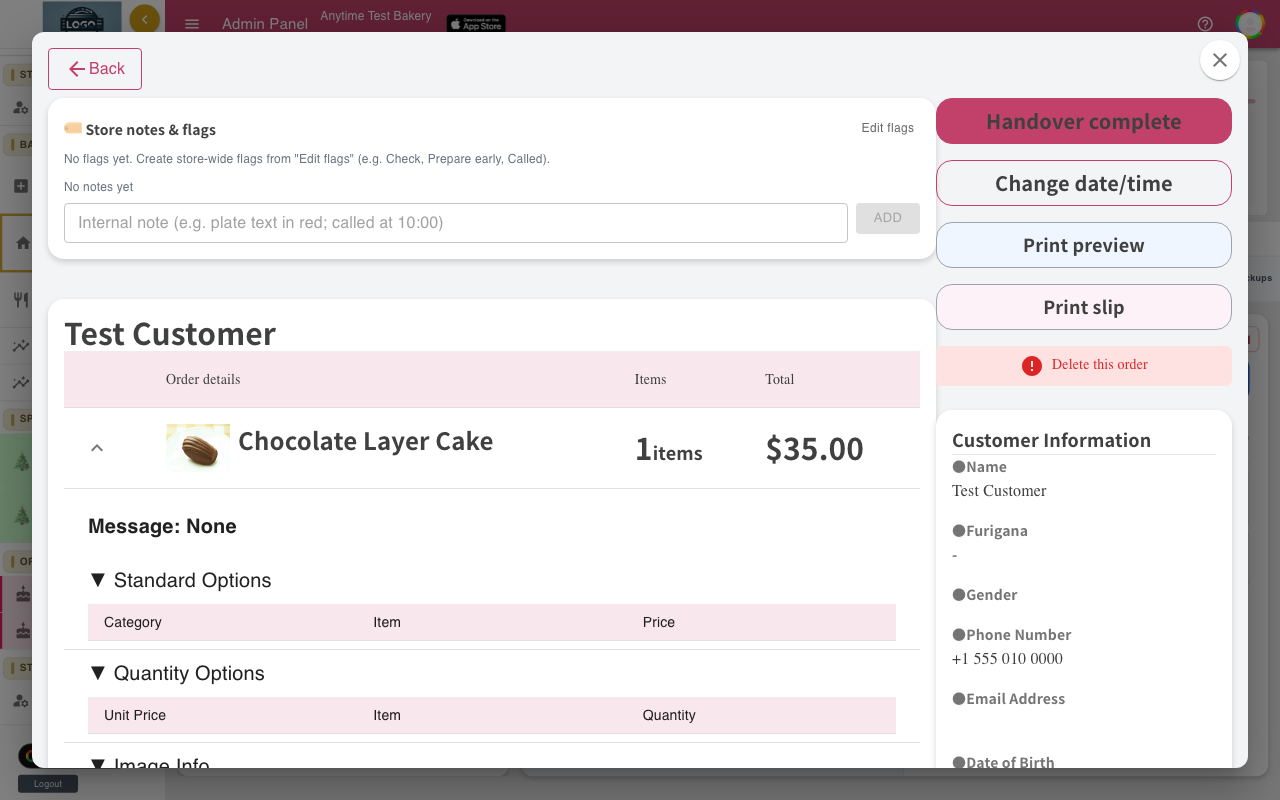
Click an order to open its details: items, options, message plate, pickup date and time, and the customer's contact details. Click Back to return to the list.
When the customer collects the order, click Handover complete, then Complete. The order is marked Handed.
-
Add notes and flags for your team
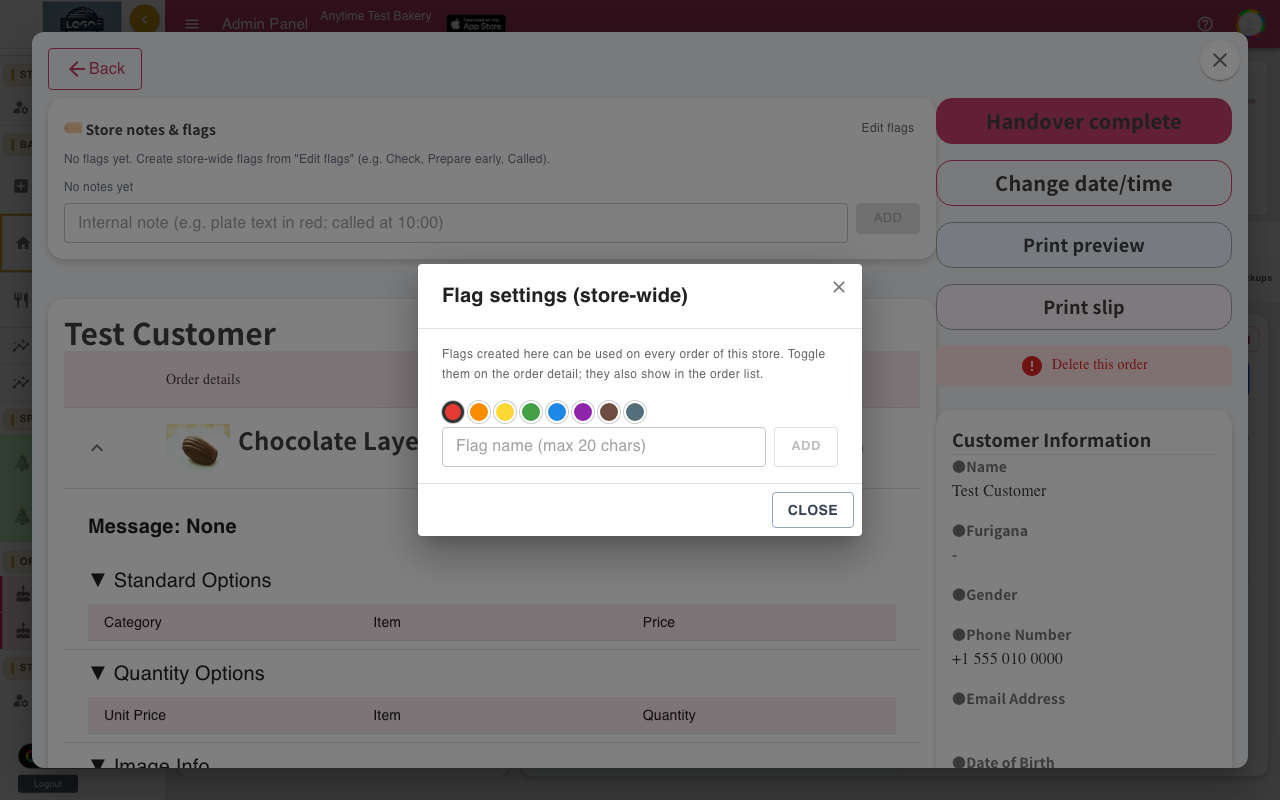
The Store notes & flags card lets you add internal notes, for example "plate text in red" or "called at 10:00". Type and click Add. Notes show on the order row in a yellow band.
Click Edit flags to create colored flags such as "Paid deposit" or "Prepare early", then click a flag on any order to turn it on. Customers never see notes or flags.
-
Change the pickup date or time
Click Change date/time, choose the new Preferred pickup date and Pickup time, and click Change.
This is the only part of an order you can edit. It does not check stock or your hours, and the customer is not emailed, so let them know yourself.
-
Cancel an order
There is no cancelled status. To cancel, open the order, click Delete this order and confirm with Delete. The order is removed permanently.
The customer is not emailed, and the stock is not put back. Add it back in Inventory and stock if needed.
-
See totals by product
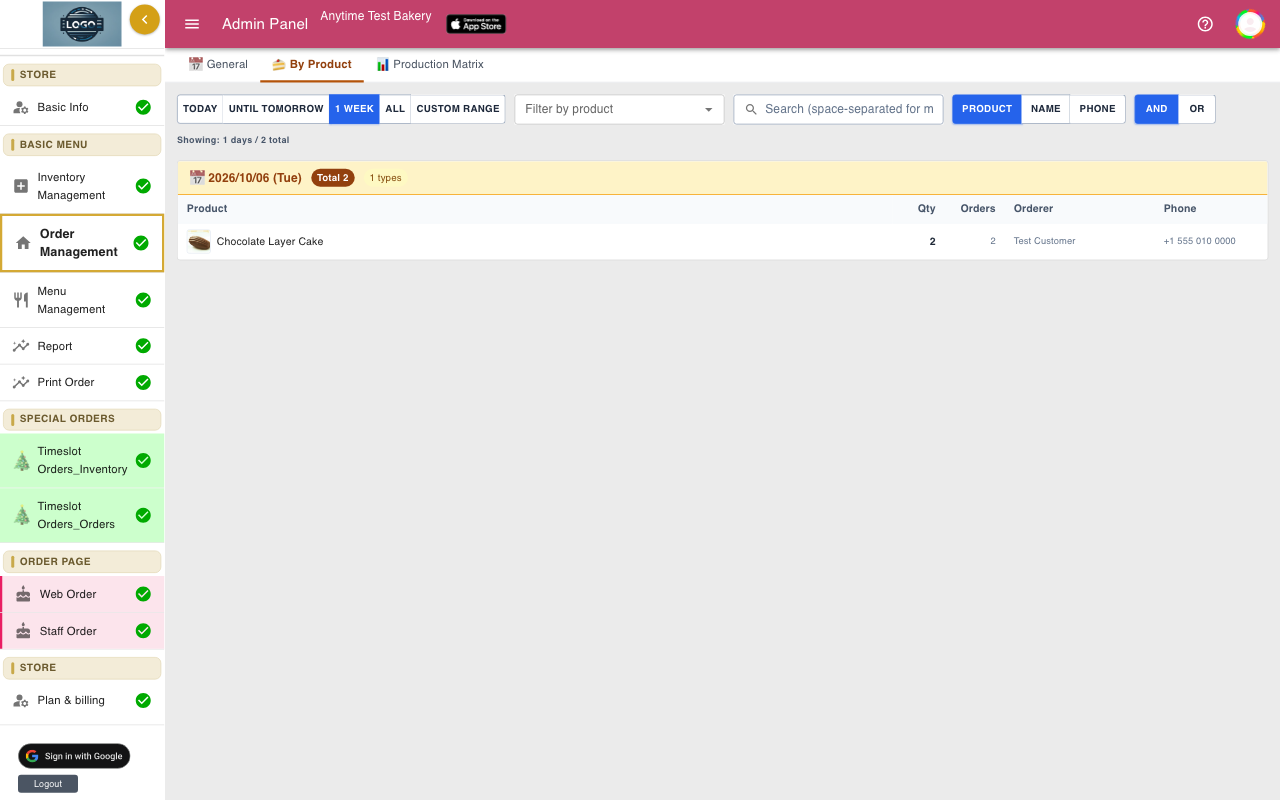
The By Product tab lists how many of each product are due, day by day. Choose Today, Until tomorrow, 1 week, All or a Custom range, and search by product, name or phone.
Tips
- Delete test orders when you are done so they don't appear on your production sheet.
- To change items on an order, delete it and enter it again on Staff Order.
- Report in the left menu shows sales by product and by day, with a CSV Download.
Questions
How do I see how many of each item I need?
Open the By Product tab, or the Production Matrix tab. See Production sheet.
Who can delete orders?
Anyone except team members with View only access.
Can I see orders on my phone?
Yes. The admin console works in any modern browser on a phone, tablet or computer.
Can I search by order number?
No. Search by the customer's name or phone number.
Related guides
Still stuck? Email us at support-global@cakesystem.net.