Before you start
- The hours your counter is open for pickups (these can be shorter than your opening hours).
- Your weekly closed days and any holidays or vacations coming up.
- How many days ahead you are happy to take orders.
Step by step
-
Check that your shop is open for orders
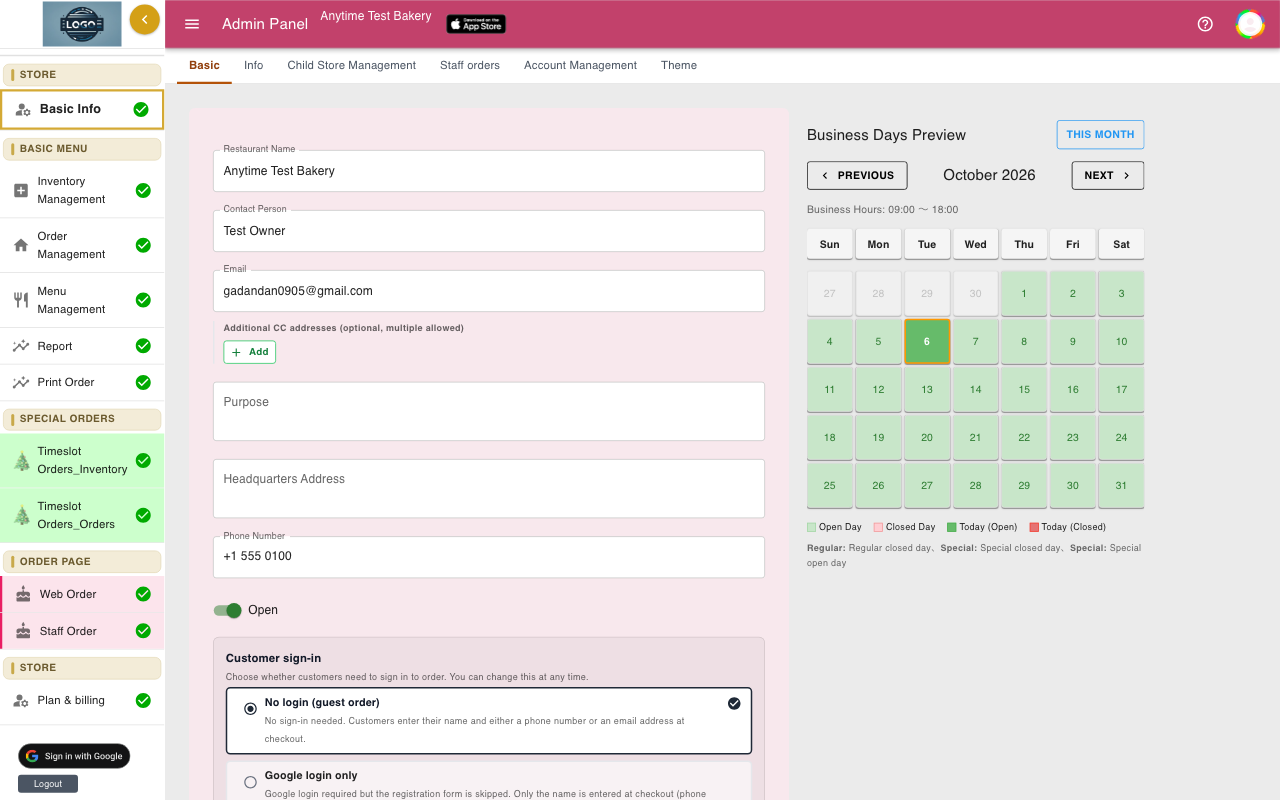
Open Basic Info and stay on the Basic tab. Make sure the Open switch is on.
When it is off, your order page shows This shop is not accepting online orders at the moment. and customers cannot check out. Use it to pause orders, and turn it back on with Update when you are ready.
-
Set your pickup hours
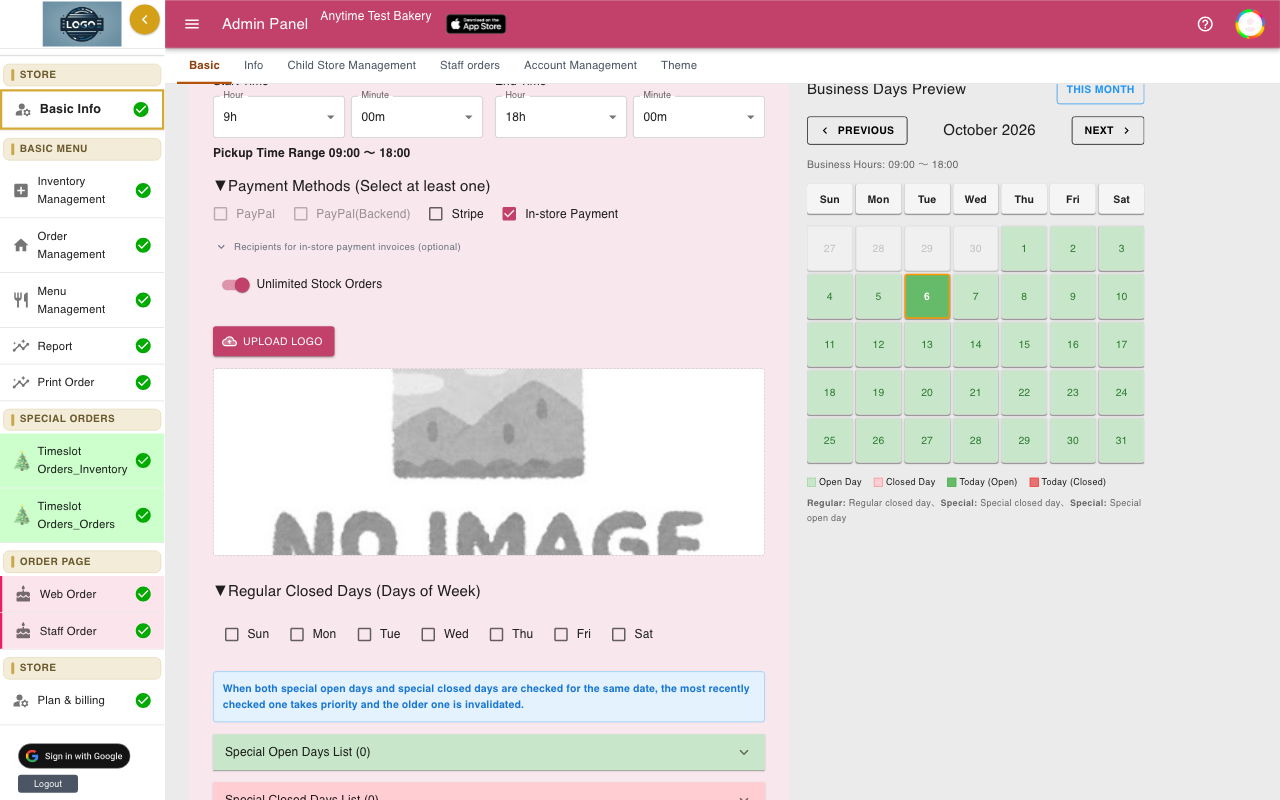
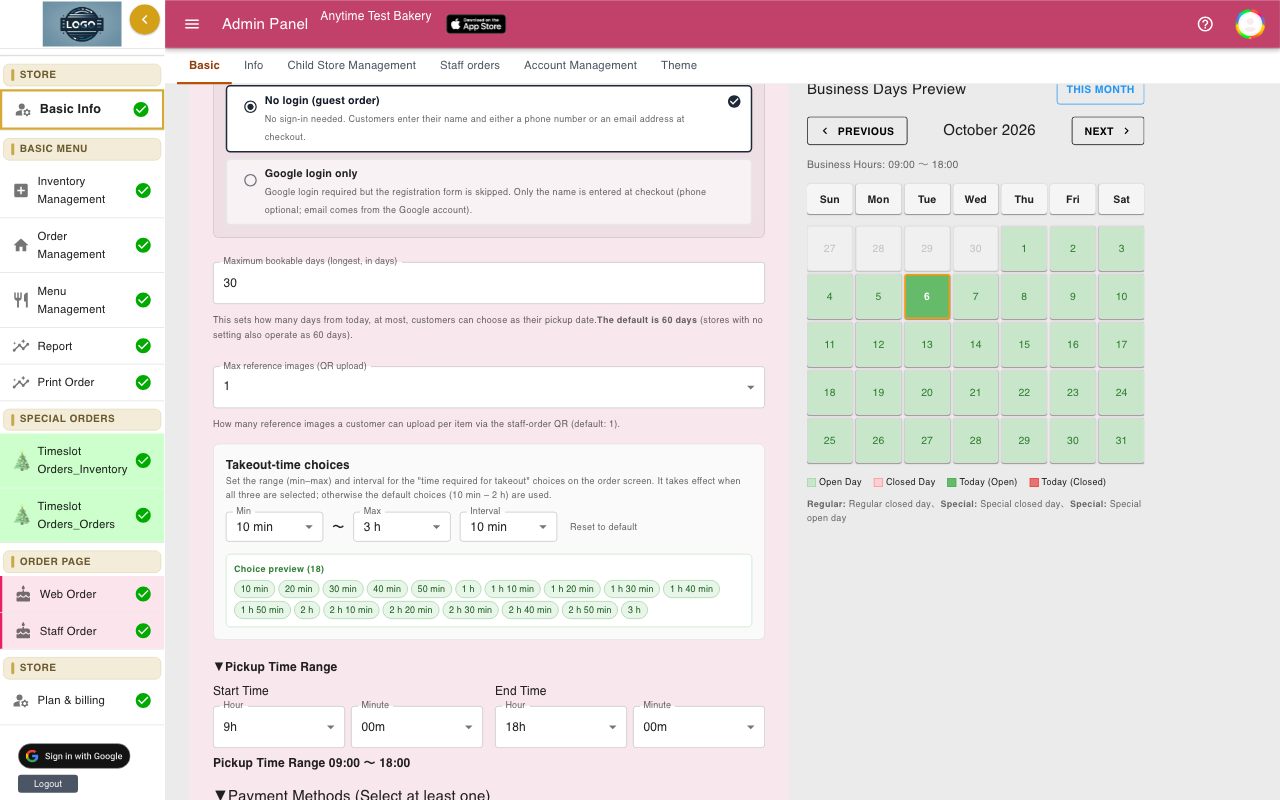
Scroll to Pickup Time Range. Choose the Hour and Minute for Start Time and End Time. Customers can only choose pickup times inside this window.
If the end is before the start, the page corrects it and shows a message. The line under the boxes shows the result, for example Pickup Time Range 09:00 ~ 18:00.
-
Tick your regular closed days
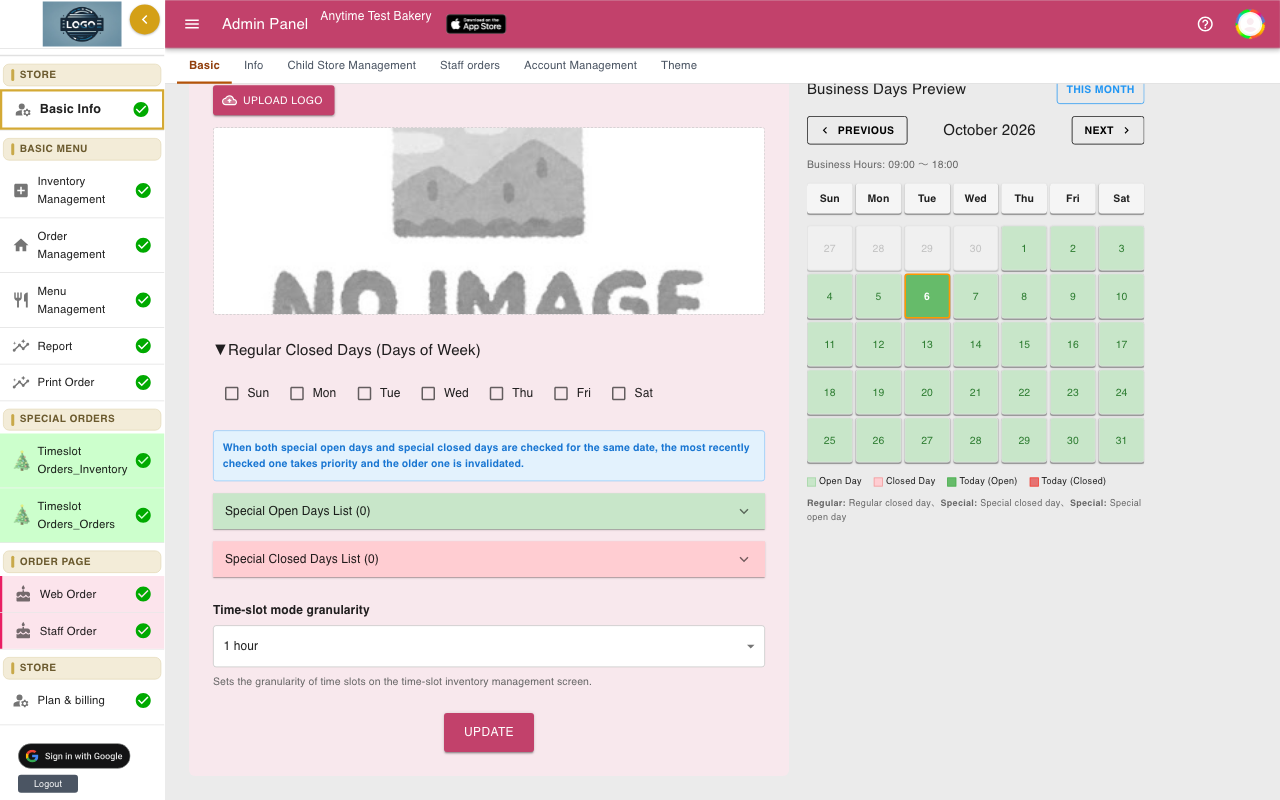
Under Regular Closed Days (Days of Week), tick the days you are always closed, for example Sunday and Monday. Customers cannot pick these days.
The Business Days Preview calendar on the right updates as you tick. Open days are green and closed days are red.
-
Add holidays and one-off closures
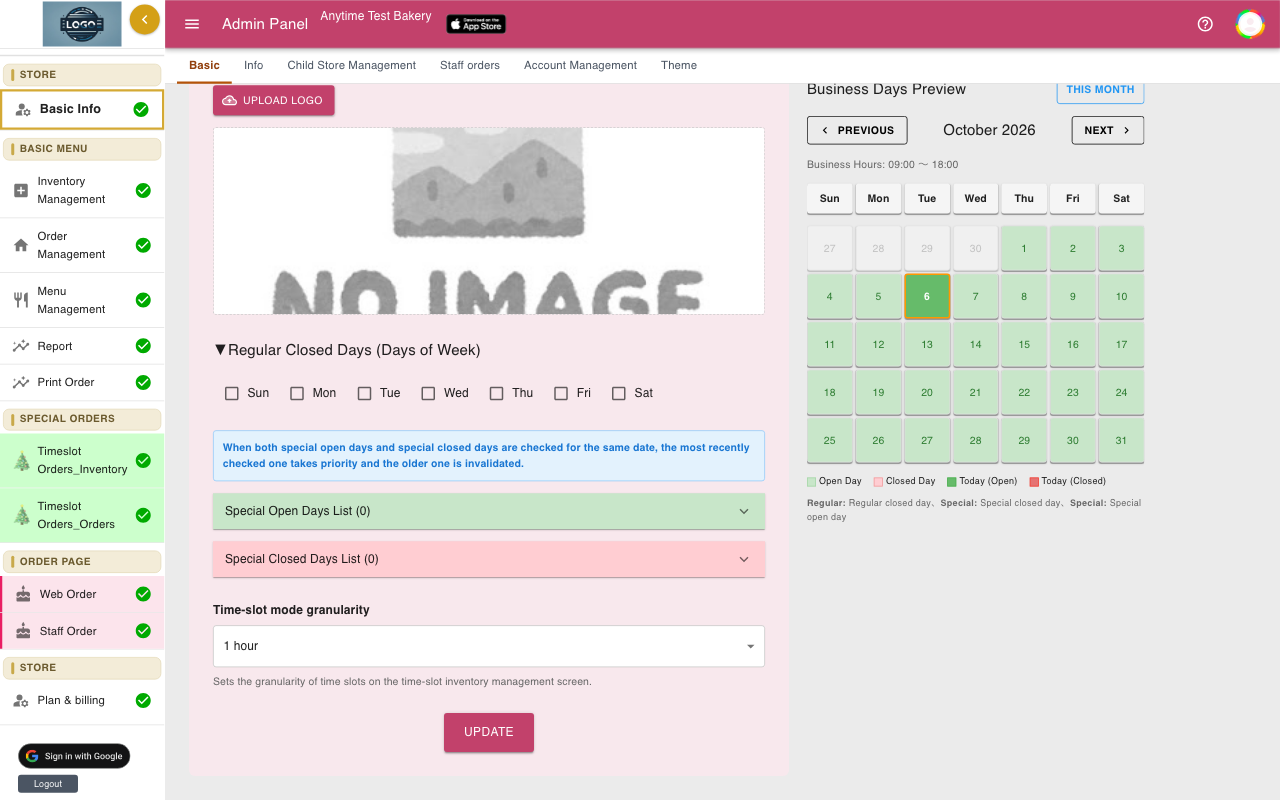
Open Special Closed Days List and click each date you will be closed, for example Thanksgiving or a vacation week. Each date appears in the list with a bin icon to remove it.
To open on a day you are usually closed, use Special Open Days List the same way. A special open day wins over a regular closed day.
-
Choose how far ahead customers can order
Find Maximum bookable days (longest, in days). Enter the number of days from today that customers can choose, for example 30 or 60. If you leave it blank, it is 60 days.
Customers will not see dates after this limit.
-
Optional: travel-time choices
At checkout, customers choose Time required for takeout, which is how long it takes them to get home. The choices run from 10 minutes to 2 hours unless you change them.
To change them, set Min, Max and Interval under Takeout-time choices. All three must be set, or the default choices are used. Reset to default clears them.
-
Save with Update
Click Update at the bottom of the Basic tab. You will see Data submission completed! when it is saved.
Open your order page and try to pick a closed day to check it is greyed out.
-
Set how much notice each product needs
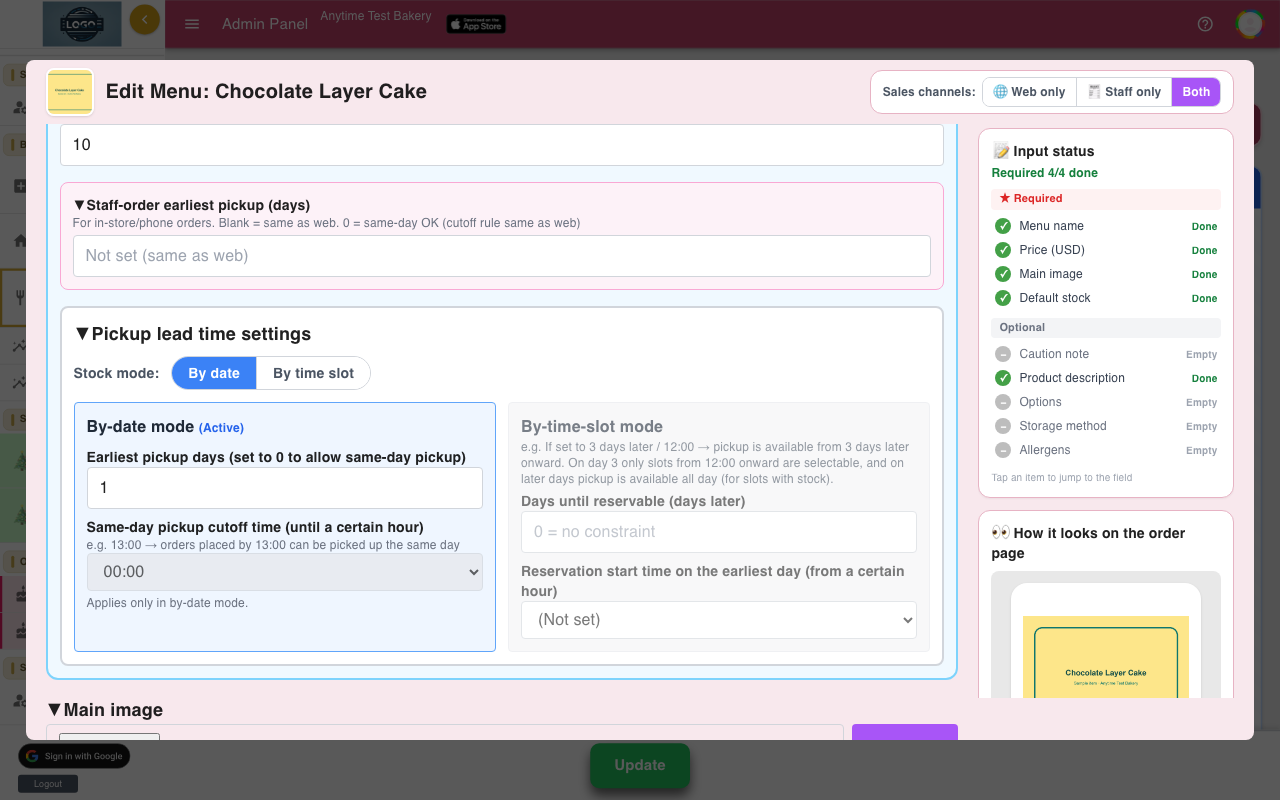
How many days ahead a product must be ordered, and same-day cut-off times, are set on each product, not here. Open the product in Menu Management and use Pickup lead time settings.
See Products for the details.
Tips
- Add holidays as soon as you know them. Customers often order weeks ahead for birthdays.
- If you are closing for a few days at short notice, add the dates under Special Closed Days List instead of turning off Open. Customers can still order for the days after.
- Set pickup hours a little shorter than your opening hours if you need time to pack orders in the morning.
Questions
Can I have different hours on different days?
No. There is one Pickup Time Range for every open day. Choose hours that work on all your open days.
Are public holidays added automatically?
No. Add each holiday you close for under Special Closed Days List.
What happens to orders already placed on a day I close?
They stay. Closing a day only stops new orders for it. Open Order Management, check that day, and contact those customers.
I ticked a date in both lists. Which one wins?
The one you ticked last. Adding a date to one list removes it from the other.
Related guides
Still stuck? Email us at support-global@cakesystem.net.